How-to seriesSeptember 28, 2026
How to generate a short video from a photo
Animate one photo with a bounded video request. Follow the original Lake McDonald example, inspect the finished clip, and preserve its prompt and recorded cost.
A photo-to-video request needs a clear motion brief: what moves, what stays still, how long the clip runs and how much the agent may spend. Start with one modest movement. This tutorial follows an existing Vaaya run, with the original photograph, generated MP4 and recorded request available below.
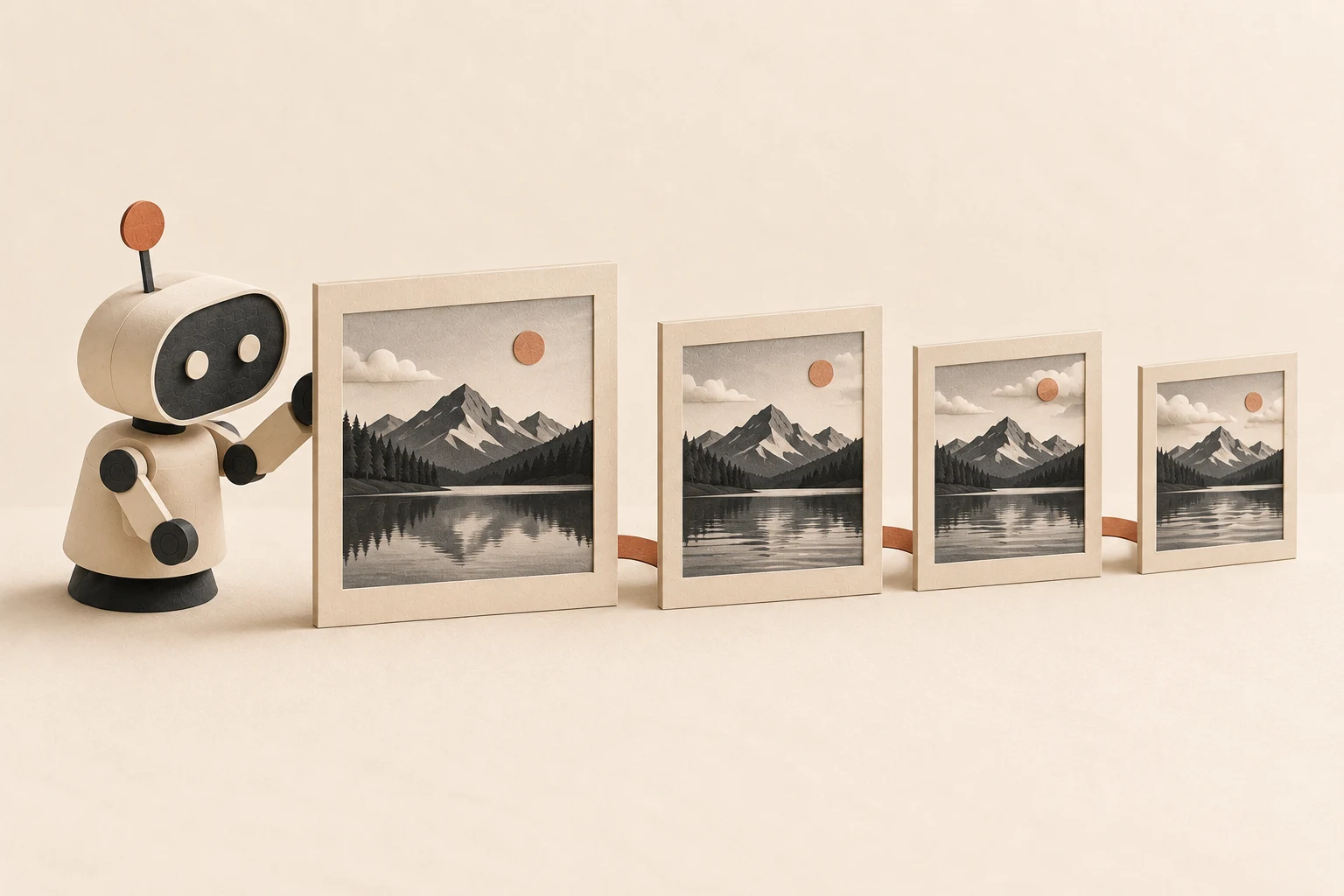
Original generated illustration. The working example uses a separately credited photograph.
1. Choose a photo and a small movement
Use an image you have permission to upload and animate. Clear subjects and restrained motion give you specific things to check afterward. Faces, lettering and product geometry can change during generation.
Our source is Lake McDonald in Glacier National Park. The U.S. Fish & Wildlife Service credits Ryan Hagerty/USFWS and marks the photograph public domain. We supplied its unchanged 1,200 × 900 JPEG. Photo source and credit.
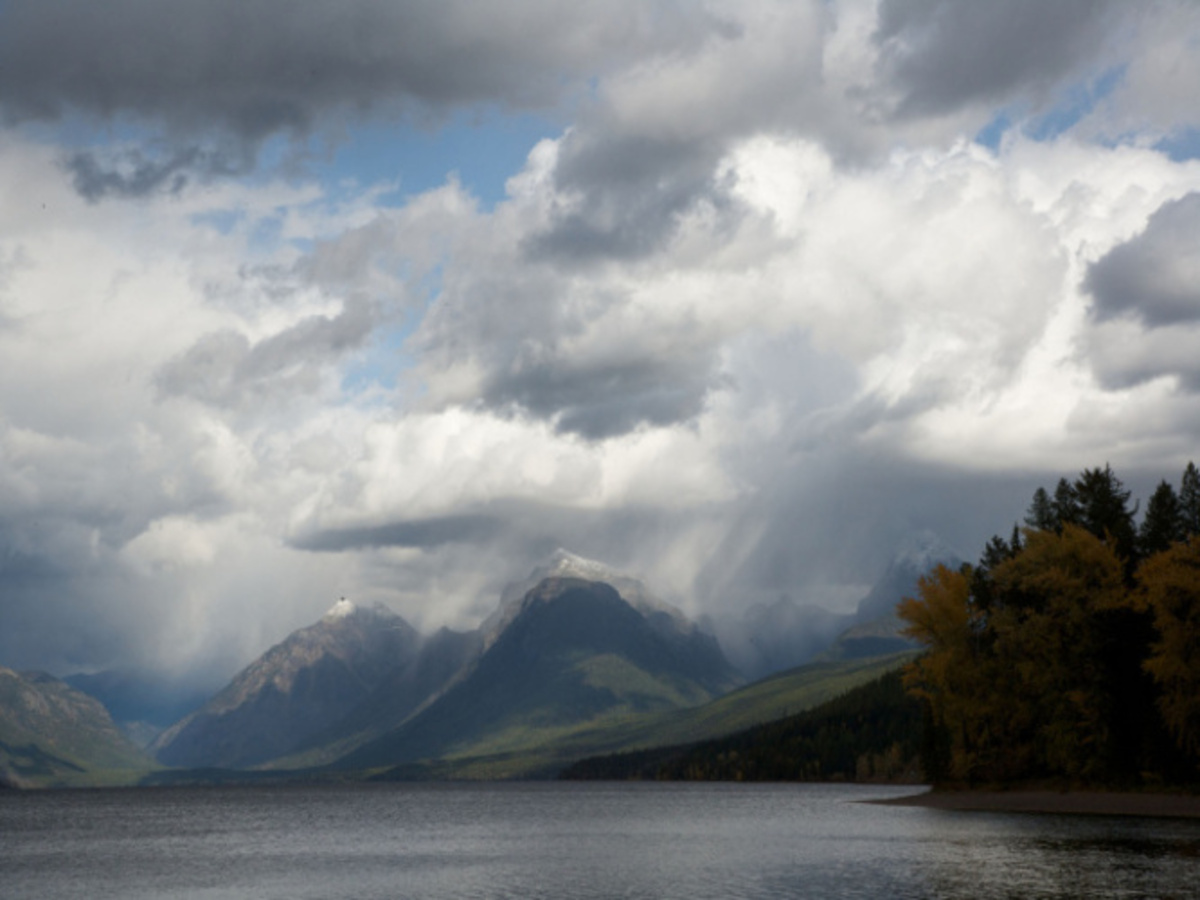
Before: Ryan Hagerty/USFWS. Download the original JPEG.
Connect your agent using the Vaaya installation guide. Have it check the current image-to-video schema and quote before submitting anything. This recorded example uses fal/generate with seedance-2-0--fast--image-to-video; the model's input schema describes its supported files and settings.
2. Write the motion brief
The exact prompt used for this run was:
Animate this landscape photograph into a natural five-second shot. Keep the camera completely locked and preserve the original framing, mountain shapes, shoreline, trees, colors and overcast lighting. Add gentle small ripples moving across the lake and slow, subtle cloud drift. Keep the mountains and shoreline still. No camera movement, no zoom, no cuts, no new people, boats, birds, buildings or text. Natural restrained motion throughout.
For your own photo, paste this instruction and replace the brackets:
Use Vaaya to animate this photo into one short video.
Move [subject] gently and keep [important details] stable.
Use [a fixed camera or one slow camera move].
Keep the original framing. Show the model, settings and current
quote before generation. My total budget is [amount].
Submit once, check that job, and return the finished file,
source photo, prompt and actual charge.
A fixed camera avoids asking the model to invent large areas outside the photograph. With Instinct on WhatsApp or iMessage, the instruction can be conversational where your setup has a Vaaya connection. The artifact here was generated through Vaaya's tool call; it is not a captured Instinct conversation.
3. Upload, submit and keep the job ID
A chat attachment or laptop filename is not automatically reachable by the video provider. For this run, the agent requested a slot through fal/upload, uploaded the JPEG bytes and passed the resulting file URL to the model.
The generation used duration: "5", resolution: "720p", aspect_ratio: "4:3" and generate_audio: false. These are model-specific settings. Check the current schema before reusing them elsewhere.
Save the returned job ID and call result to check that job. Repeating use starts another generation. The tool reference explains the call-and-poll flow.
4. Download and inspect the actual clip
After: AI-generated motion. The source agency did not produce or endorse this animation.
The downloaded file is 5.04 seconds, 1,112 × 834 pixels and 24 frames per second, with no audio track. Clouds and water move, but the model also redraws fine mountain and cloud details. These observations describe this file, not a guarantee for another run.
Watch the entire clip. Compare its opening and closing frames with the photograph, then check motion, subject shape and unwanted additions. Download the MP4 instead of treating a provider URL as permanent storage.
5. Save the evidence and decide on revisions
This September 16, 2026 run cost $1.36: 1¢ to stage the image and $1.35 for one video generation. The generation had a $1.50 ceiling. We made one render and retrieved its result. This historical price is not a current quote.
The generation request, recorded result, upload record and artifact provenance preserve the evidence. The run was recorded in Pacific time; artifact timestamps use UTC.
For a failed job, read the error before retrying: an inaccessible source and an unsupported setting need different fixes. For a completed but unsatisfactory clip, change one thing, such as reducing movement, and price the next attempt separately. Keep the accepted version beside its source, prompt and receipt.
Questions
What do I need to turn a photo into a video?
A supported image you have permission to use, a motion brief, a compatible image-to-video model and a spending budget. A local filename must be uploaded or otherwise made reachable by the provider.
Should I submit the request again while it renders?
No. Keep the returned job ID and check it with result. A new generation is a separate job and may create another charge.
Does the generated video show what happened after the photo?
No. The model invents motion. This example is an AI-generated animation of a photograph, not recovered footage or evidence of a real event.